Overview
What is laravel?
Laravel is a free, open source PHP web application framework, designed for the development of model–view–controller (MVC) web applications. Laravel is released under the MIT license, with its source code hosted on GitHub.
What is xampp?
XAMPP is a free and open source cross-platform web server solution stack package, consisting mainly of the Apache HTTP Server, MySQL database, and interpreters for scripts written in the PHP and Perl programming languages.
Requirements
- xampp
- composer
- mcrypt
Setup
  chmod 755 xampp-linux-*-installer.run
  sudo ./xampp-linux-*-installer.run
This will open the installer and just click “next” and it will install xampp files in /opt/lampp folder. You should first check if lampp is functioning properly. To test this,sudo /opt/lampp/lampp startLet it start everything for you. Now just go to http://localhost and see it is working. We will need to setup security settings as well.sudo /opt/lampp/lampp securitySet all the passwords etc, and you are done!- Now you need to get composer
  curl -sS https://getcomposer.org/installer | php
  sudo mv composer.phar /usr/local/bin/composer
If you still get an error, please refer to composer website. - Now you need to get important dependencies of laravel - mcrypt.
sudo apt-get install php5-mcrypt php5-jsonAnd now run,sudo php5enmod mcryptTo make sure it is running,php -i | grep mcryptIt will output.......
mcrypt support => enabled
mcrypt_filter support => enabled
....... - Let us create an app -
cdinto /opt/lampp/htdocs andmkdir laravel-projects. Then finallycd laravel-projects. Now execute below command to create a fresh project.sudo composer.phar create-project laravel/laravel --prefer-distIt’s gonna take its time. Just wait for it to finish. Once it is done, executesudo chmod -R 775 app/storage - Now you can modify app/config/app.php to change locale, timezone, debug (to ‘true’ - for viewing errors) etc.
Testing
To test, Just go to http://localhost/larvel-project/laravel/public/ , you will see a page with “You have arrived.” as shown below.
Or you can simply run
sudo php artisan serve
and visit http://localhost:8000 you will see a page with “You have arrived.” as shown below.
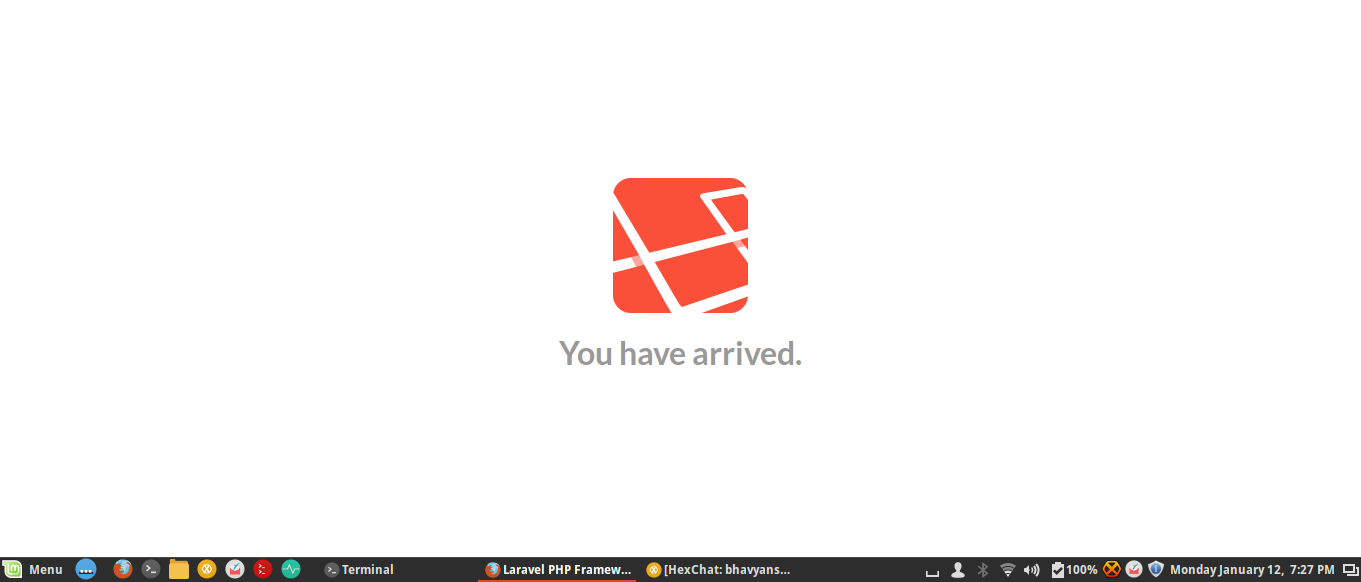
That’s it. Now you can start developing awesome apps.
https://bhavyanshu.me/tutorials/setup-laravel-project-on-xampp-linux/01/12/2015
https://bhavyanshu.me/tutorials/setup-laravel-project-on-xampp-linux/01/12/2015
